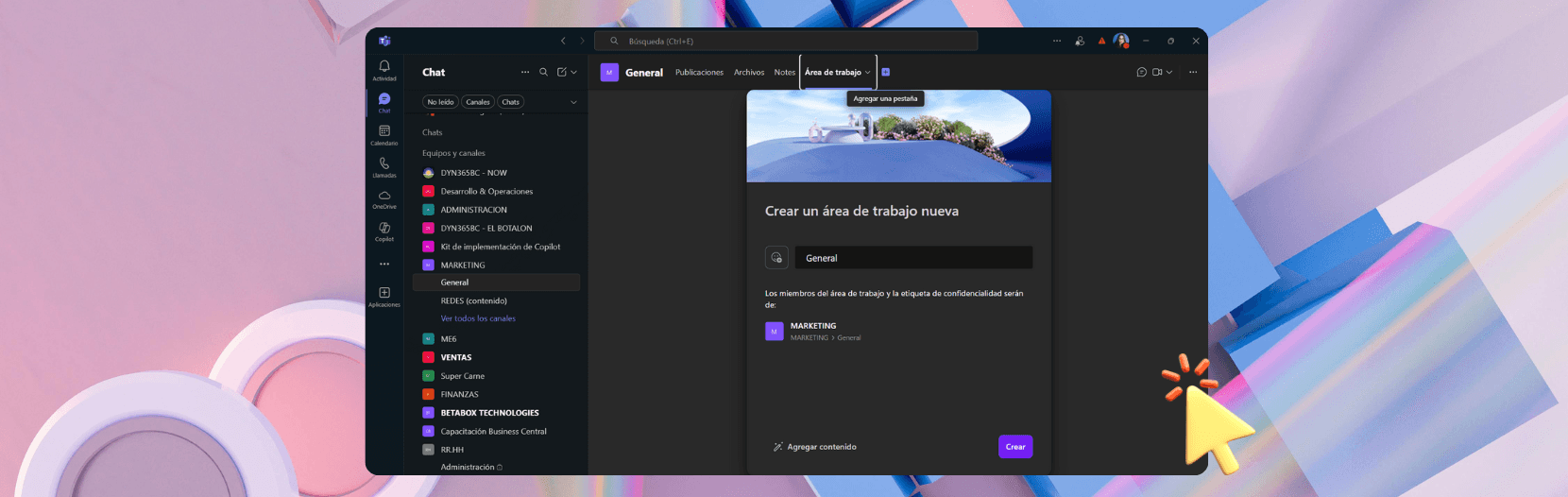
Work in real time with Loop in Teams and bring documents and conversations together in the same place. Loop workspaces in Microsoft Teams let you create, organize and move tasks forward without losing context or switching applications. The whole team sees the same thing, collaborates instantly and keeps information in order inside the channel. Access is also managed automatically based on the channel members, which reduces friction. And because it is integrated with Microsoft 365, it respects the usage, security and retention rules the organization defines.
This article explains, in plain language, what these workspaces are, how to add them to a channel, their practical advantages, usage tips and when it makes sense to create them from Teams or from the Loop app.
What is a Loop workspace in Teams?
A Loop workspace is a shared space for creating pages, linking content and working in real time with Loop in Teams. In Teams, it is added as a tab inside a channel. That way, the team conversation and the collaborative content stay together. The result: fewer emails, fewer loose files and more clarity about how the project is progressing.
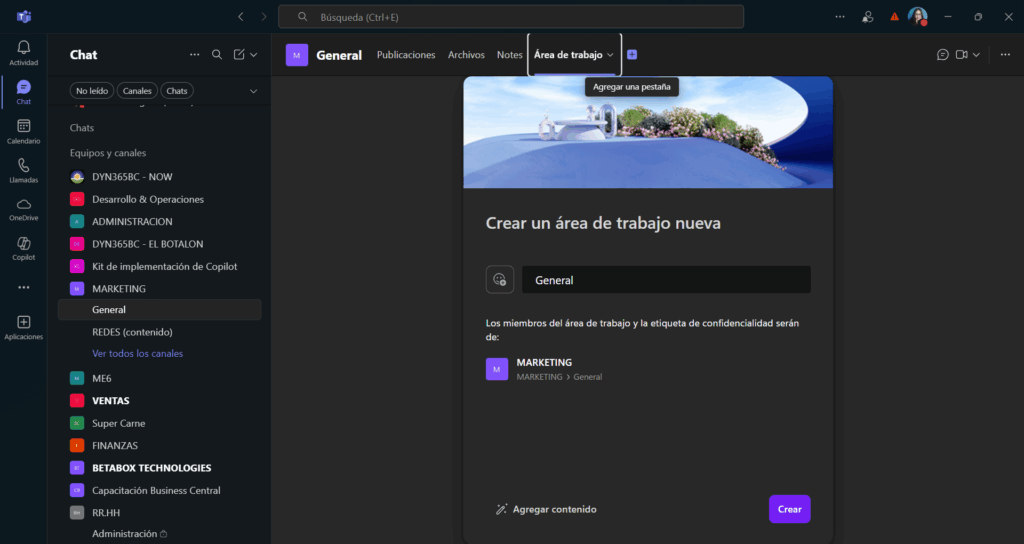
How to add a Loop workspace to a Teams channel
- Open the channel where the team will collaborate.
- Click the plus sign (+) at the top.
- Search for and select Loop in the list of applications.
- Name the workspace (it can be changed later).
- Confirm and start working in real time with Loop in Teams.
Key benefits for teams
Real-time co-creation
Several people edit at the same time, share ideas and turn those ideas into visible tasks and actions. Information flows without delays, which makes working in real time with Loop in Teams a smooth and productive experience.
Automatic access for everyone
Anyone who belongs to the channel has access to the workspace. If the channel membership changes, access is updated automatically. No extra administration.
Everything in one place
Pages, links and documents live next to the channel conversation. Less scatter. More focus.
Order throughout the project
It works for documenting knowledge, brainstorming, planning sprints, coordinating deliverables and centralizing agreements. Ideal for teams with turnover or shifting scope.
Compliance and peace of mind
Because it is backed by the team's Microsoft 365 group, the workspace respects the organization's policies (usage, security, retention and lifecycle).
Tips and tricks to get the most out of it
Use the navigation in the tab
From the Loop tab in the channel, switch between pages using the header menu. This view gives you more room to work in Teams than the side panel of the Loop app in the browser.
Synchronized membership
The workspace members are the same as the channel members. When you add or remove people from the team, access adjusts automatically.
One space per channel works best
We recommend keeping one managed workspace per channel. If the topic changes, move the old pages to a “Closed project” main page or create a new channel with a new workspace.
Was the tab deleted by mistake?
No problem. When you add Loop as a tab again, you can pin the workspace that already existed.
Rename it when necessary
By default, the space takes the name of the channel. It can be changed during setup or afterward, from the Loop app in the browser.
When should you create the space from a Teams channel?
It is the ideal option when you want the whole team to be able to work in real time with Loop in Teams without friction, especially in collaborative projects, brainstorming sessions and living documentation. It is the ideal option for:
- Projects with several people and shared deliverables.
- Documenting the team's knowledge in a living repository.
- Brainstorming that evolves into plans and tasks.
- Working with shared documents, where you want context and traceability.
It is also very useful when the audience changes over time (new members, turnover, collaboration with other areas). The channel acts as the entry point, and the workspace offers a stable place to collaborate throughout the project lifecycle.
When should you create it from the Loop app?
Choosing the Loop app makes sense when you need to directly control who has access to the space, without depending on the membership of a Teams channel. It gives you maximum flexibility to define the group of people who will view and edit the content.
It is recommended for:
- Specific working groups with limited access.
- Cross-functional projects that do not yet have a dedicated channel.
- Exploratory initiatives before formalizing a team in Teams.
Requirements and availability
- A Microsoft 365 Enterprise, EDU (Education) or SMB(Small and Medium Business) license is required to create Loop workspaces.
- The feature is rolling out to subscribers who meet these requirements. Availability may progress in stages depending on the organization.
Best practices for simple, orderly use
A clear, short name
Use a name that describes the purpose of the space. For example, “Launch plan – Q4”.
Light structure
Few pages, with simple titles. It is better to grow gradually than to start with a heavy structure.
A “Summary” page
Include objectives, milestones, owners and next steps. It keeps everyone aligned.
Basic conventions
Agree on simple rules: where to record decisions, how to name pages and how to close tasks. This avoids confusion.
Closing the project
When the work is done, move the content to an archive page or to a “Closed” section. The history is preserved, but it does not get in the way day to day.
Frequently asked questions
What if someone only needs to read?
They can access it if they are a member of the channel. Permissions follow what the team and the organization have defined.
Can I use it if I do not have permission to create?
Yes. Even if you cannot create a workspace, you will be able to take part in the one that exists in the channel.
Can the name of the space be changed?
Yes, during setup or afterward, from the Loop app in the browser.
Is the work lost if the tab is removed?
No. When you add Loop as a tab again, you can pin the same space and continue.
Where can I find information about managing Loop in my organization?
Manage Loop components in your organization | Microsoft Learn
Next step: put it into practice
To get started, the team can create a workspace in its main channel and add a “Summary” page and a “Tasks” page. Then invite everyone to work in real time with Loop in Teams during the next meeting. Within a few minutes they will notice less friction, more clarity and better decisions.
The experience improves with practice. If you would like to share your opinion, you can send feedback from the Loop app: Help and feedback > Send feedback.