Copilot for Smarter Marketing in Business Central
Optimize your strategy with Copilot for smarter marketing in Business Central. Create persuasive product descriptions in seconds and save time with AI. 🚀

As you surely already know, OpenAI and ChatGPT have gained wide recognition. You have also heard about Copilot, and you may have noticed how this technology is transforming almost every Microsoft product, including Dynamics 365 Business Central.
One of the most interesting applications of Copilot in Business Central is its ability to generate smart, effective marketing text. Creating engaging, persuasive content can be a challenge, even for experienced professionals, and it usually takes time. However, with Copilot, you have a tool at your disposal that makes the process easier and improves the results. It is especially useful if you do not have a large marketing team or if you are looking to optimize your strategy.
What you need to do is give Copilot the basic information about your product through its attributes, and the tool generates several marketing text options. Then you review and adjust those suggestions to suit your needs.
To try out this feature, make sure you have the latest version of Dynamics 365 Business Central.
On the item card, make sure you have the right attribute data:
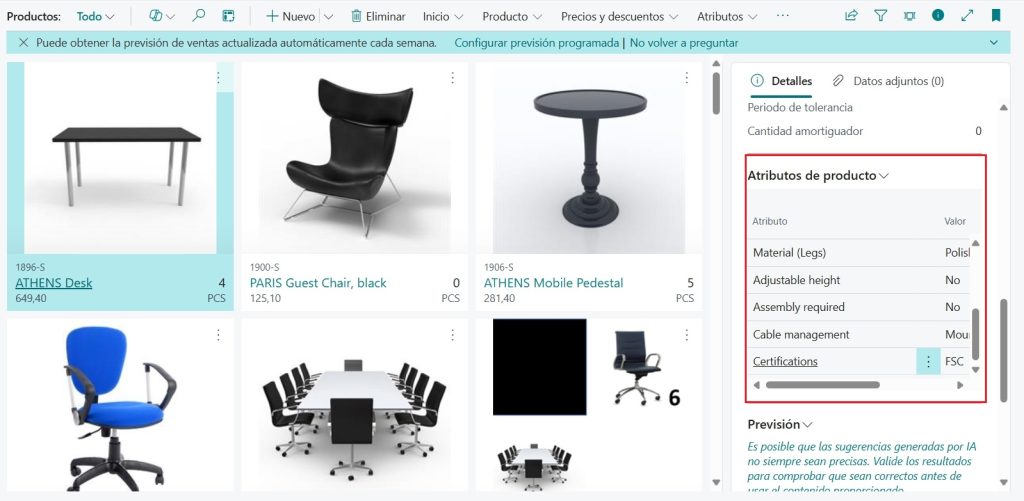
Open the product card where you want to generate the marketing text and click Draft with Copilot. This will generate a marketing text for the product based on its attributes, just like that.
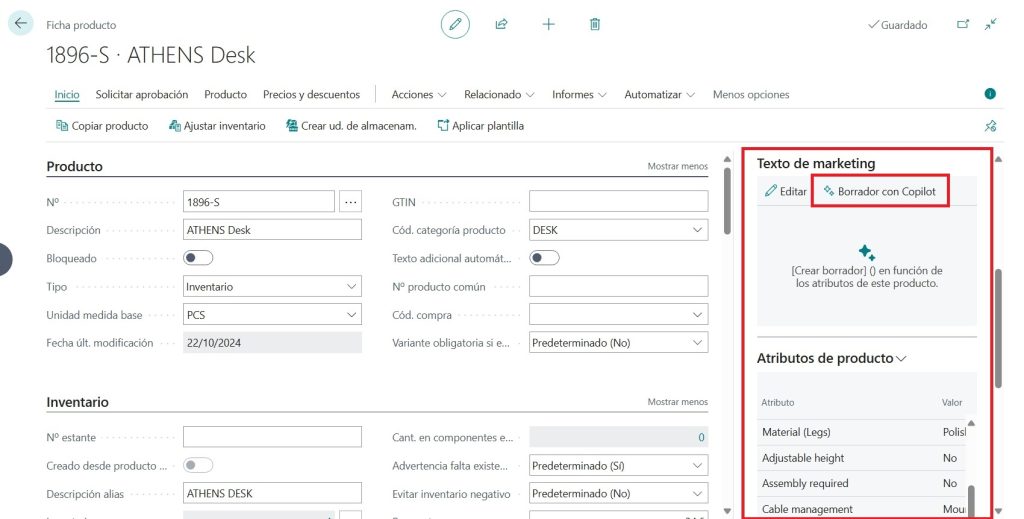
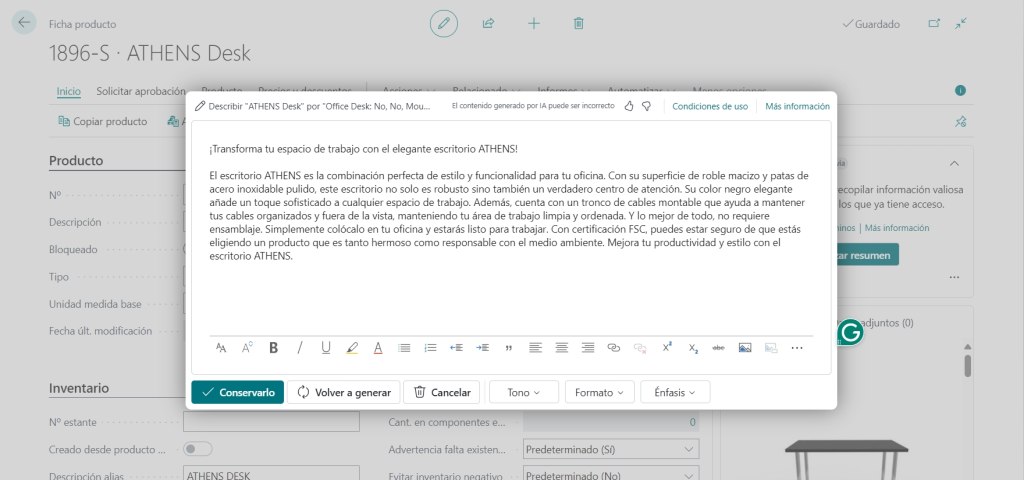
Once you generate the marketing text, you will have the option to edit it and make a few adjustments in the settings.
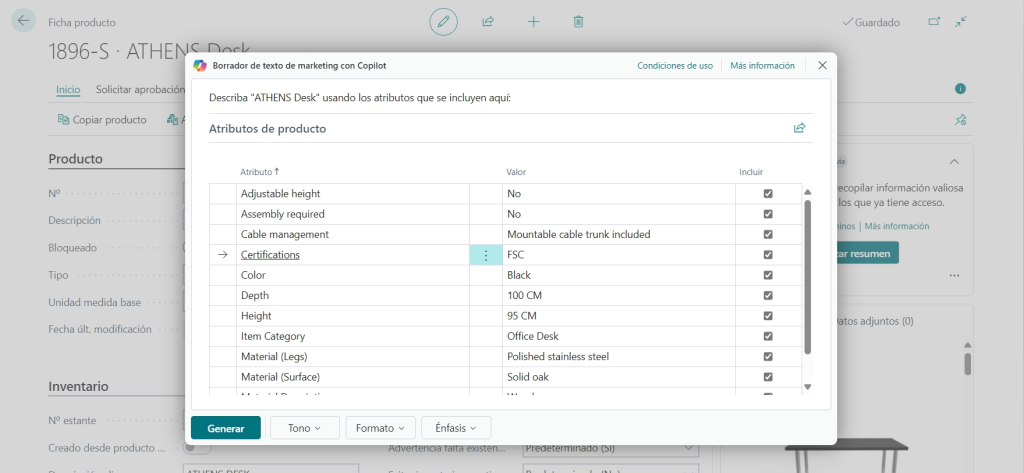
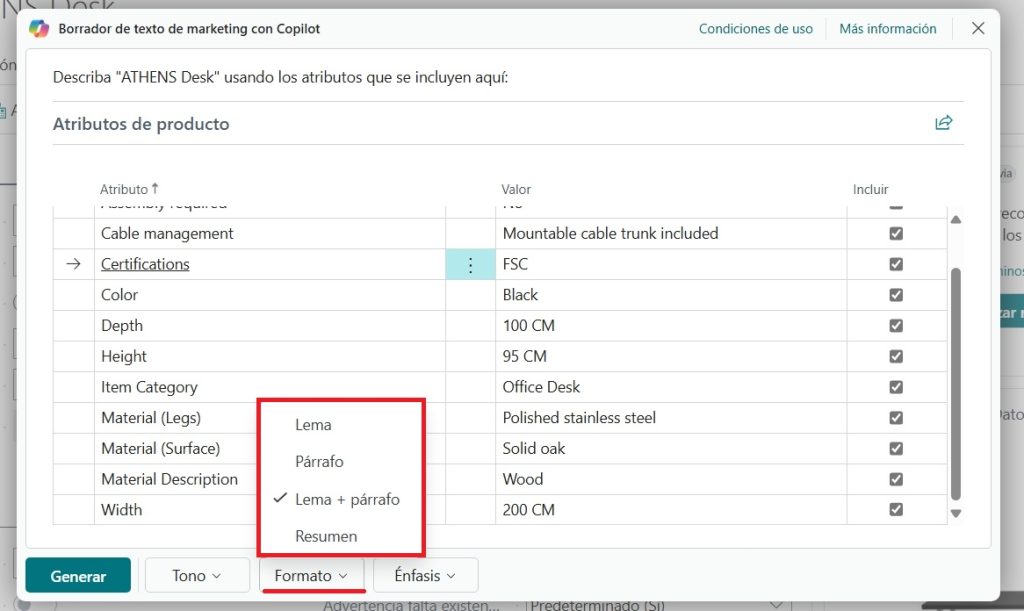
If you have several attributes you want to exclude, you can do that. Clear the attributes you do not need Copilot to take into account.
You can also adjust the format and length of the marketing text. The options are:
- Tagline
- Paragraph
- Tagline+ Paragraph (Default)
- Summary
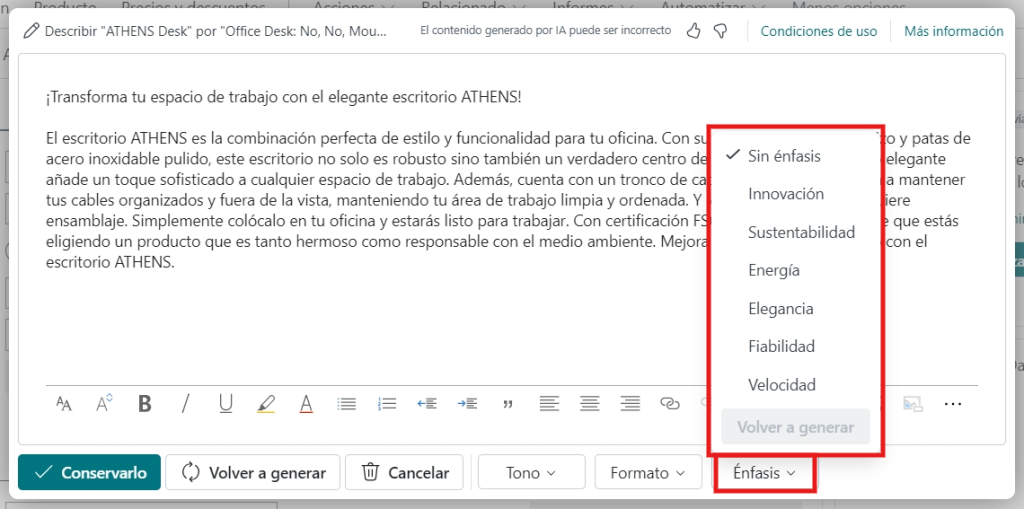
In addition, you can click Emphasis, which gives you more controls over how the marketing text is generated. In this example, you could change the emphasis of the text to “Elegance.” But you have multiple options:
- No emphasis
- Innovation
- Sustainability
- Energy
- Elegance
- Reliability
- Speed
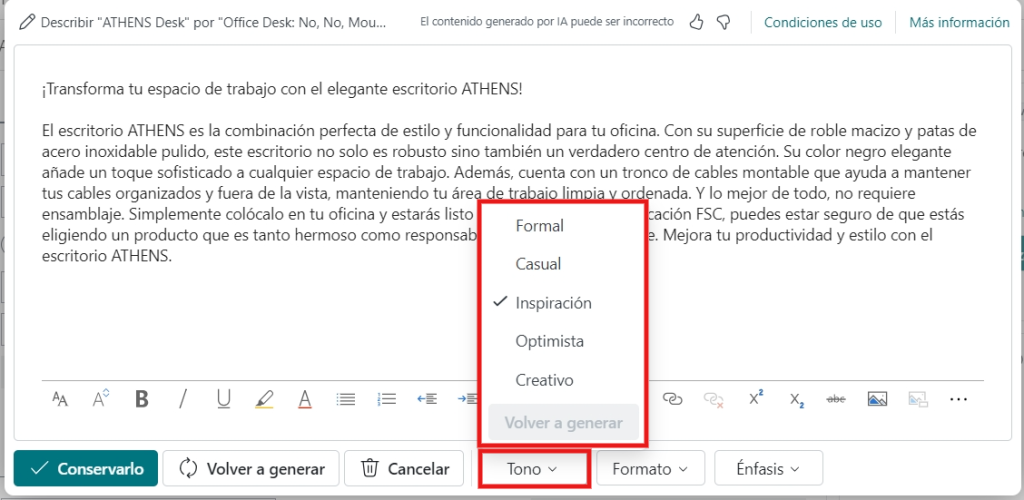
In the same way, you also have multiple options for changing the tone of the text:
- Formal
- Casual
- Inspirational
- Optimistic
- Creative
Once you have made your adjustments in the additional settings, click Keep it, but if you want another sample text, you can click Regenerate.
This way, the text has been adjusted based on the additional settings you have established.
By integrating Copilot into your Dynamics 365 Business Central, you are essentially adding a powerful, intelligent tool to your marketing team. It gives you the opportunity to create more effective and more targeted marketing campaigns, saving time and resources and, ultimately, getting better results.
Feel the power of Copilot in action 🚀